Criticality is the ability to identify critical path components by using failure modes and the weighting of ‘risk’.
Criticality analysis allows a user to quantitatively rank equipment in terms of:
- Their importance to the business, and
- The associated cost to the business if they were to fail.
The importance is based on key criteria that the business considers relevant, with the criteria configured in the Criticality Configuration. Please refer to the article on Module Configuration for further information.
Criticality data can be entered at any location of the hierarchy below a database connection. This includes SAP functional locations and equipment. Once data has been entered, it is possible to query the number of locations for each rating in the analysis tab.
Click on each of the actions below for information on the key terms displayed during the criticality analysis process.
A breakdown of the key components on the criticality analysis screen is detailed in the images and table below.
| No | Item | Description |
|---|---|---|
| 1 | Selected Item | The selected equipment or component in the Hierarchy. |
| 2 | Criteria | The criteria name. |
| 3 | Details | Details relating to the criteria. These can be adjusted and set on a per criteria basis. |
| 4 | Comments | Comments can be added to the criteria through the edit function. |
| 5 | Overall Criteria Rating | This section contains a visual and statistical input from all the criteria you have added data for. The colour of the bar will change based on how critical the overall sum of criteria. The colours can be adjusted in Criticality Configuration. |
| 6 | Criticality Controls | These allow you to export the currently displayed information or allows you to run further analysis tools on the selected functional location or equipment. |
| 7 | Criticality Weight | This contains the weight and score of the probability and severity added together. These values are determined by the Criticality Scoring in Administration mode. |
| 8 | Document Generation Date | This dropdown box contains a list of reports that have been run against this entity. |
| 9 | Risk Profile | This graph displays the number of functional location or equipment and their ranking grouped by the criticality weighting. |
Creating a Criticality Analysis
Creating an analysis in Orien involves several steps. Let's review these in some more detail.
- Choose the appropriate item in your hierarchy and select the Criticality Analysis module.
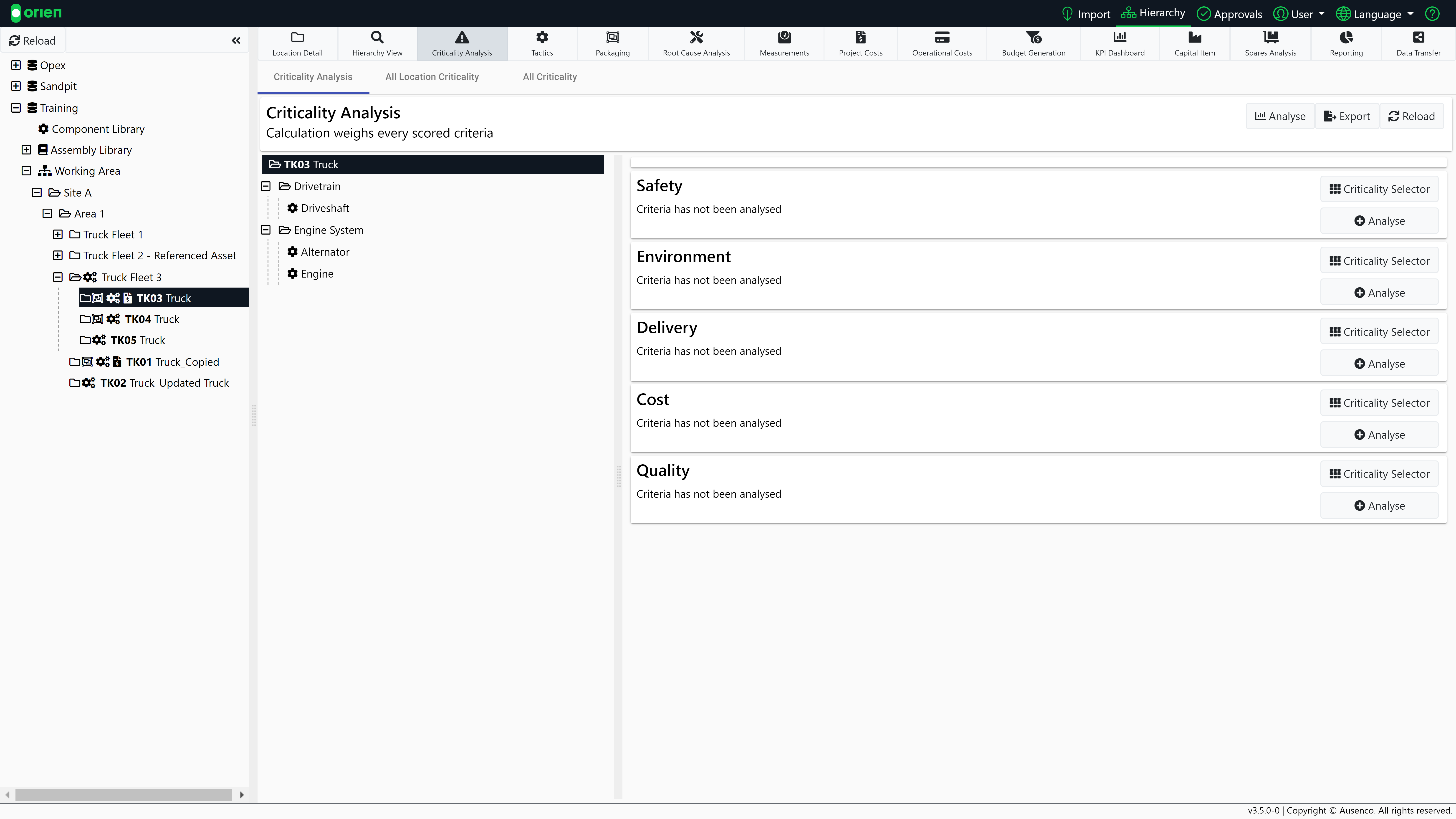
Note
Please note this must be an item that is not located in a component library or assembly library.
- There are two ways to assign a criticality to each criteria:
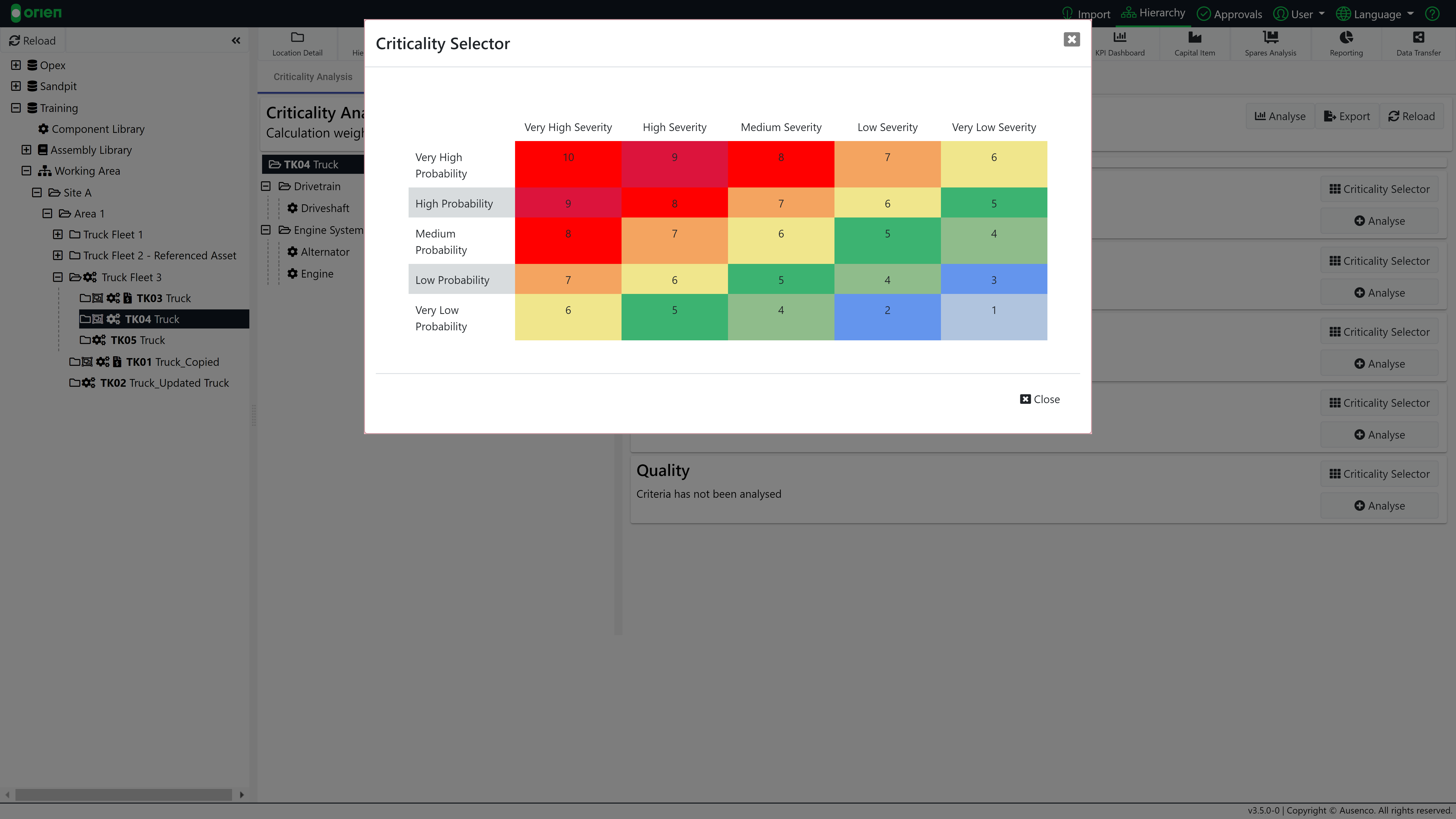
- Select the Criticality Selector button and you will be presented with a grid. Choose the square which best represents the criticality of the criteria. Select Edit if you want to add any comments or consequence information.
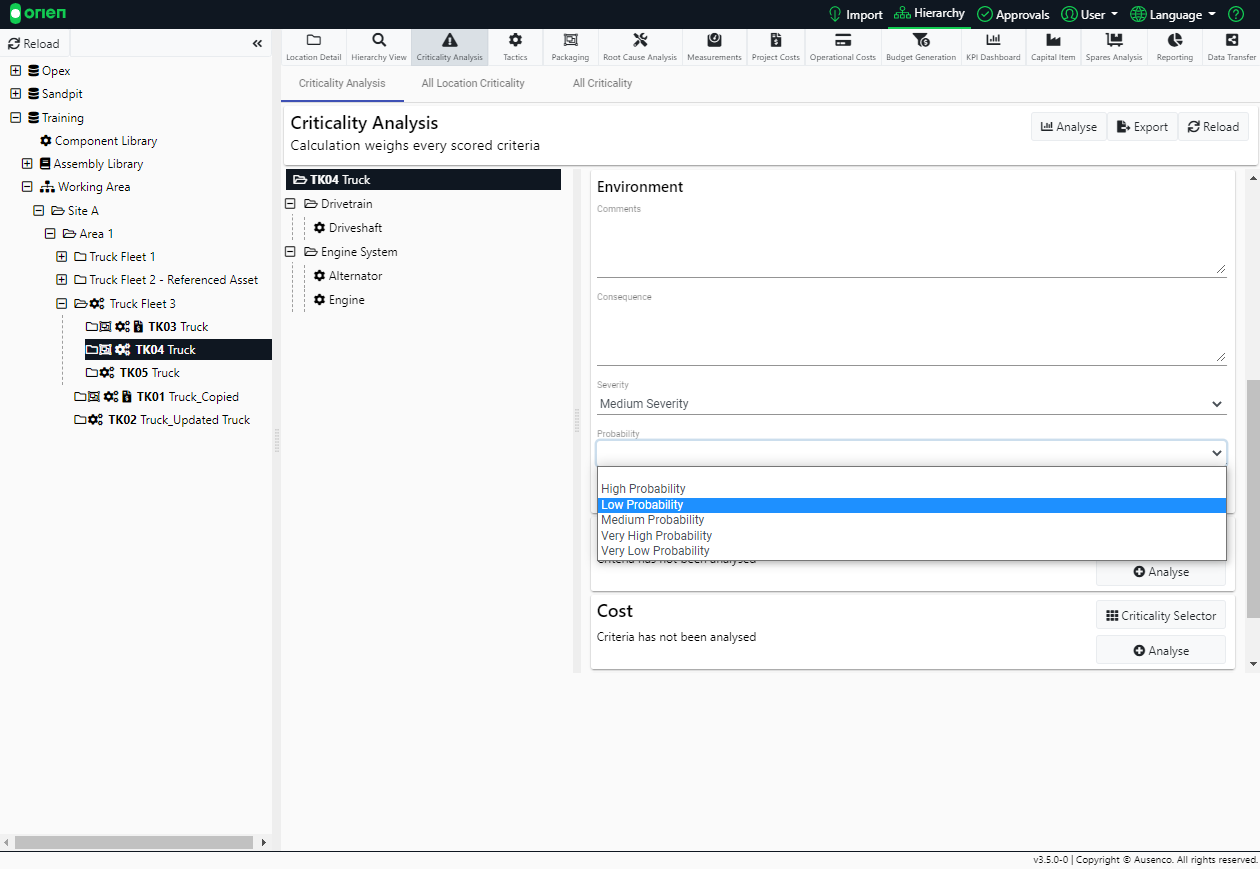
- Select the Analyse button and add any comments or consequence information. Choose the appropriate Severity and Probability from the drop-downs. Save your changes.
- Select the Criticality Selector button and you will be presented with a grid. Choose the square which best represents the criticality of the criteria. Select Edit if you want to add any comments or consequence information.
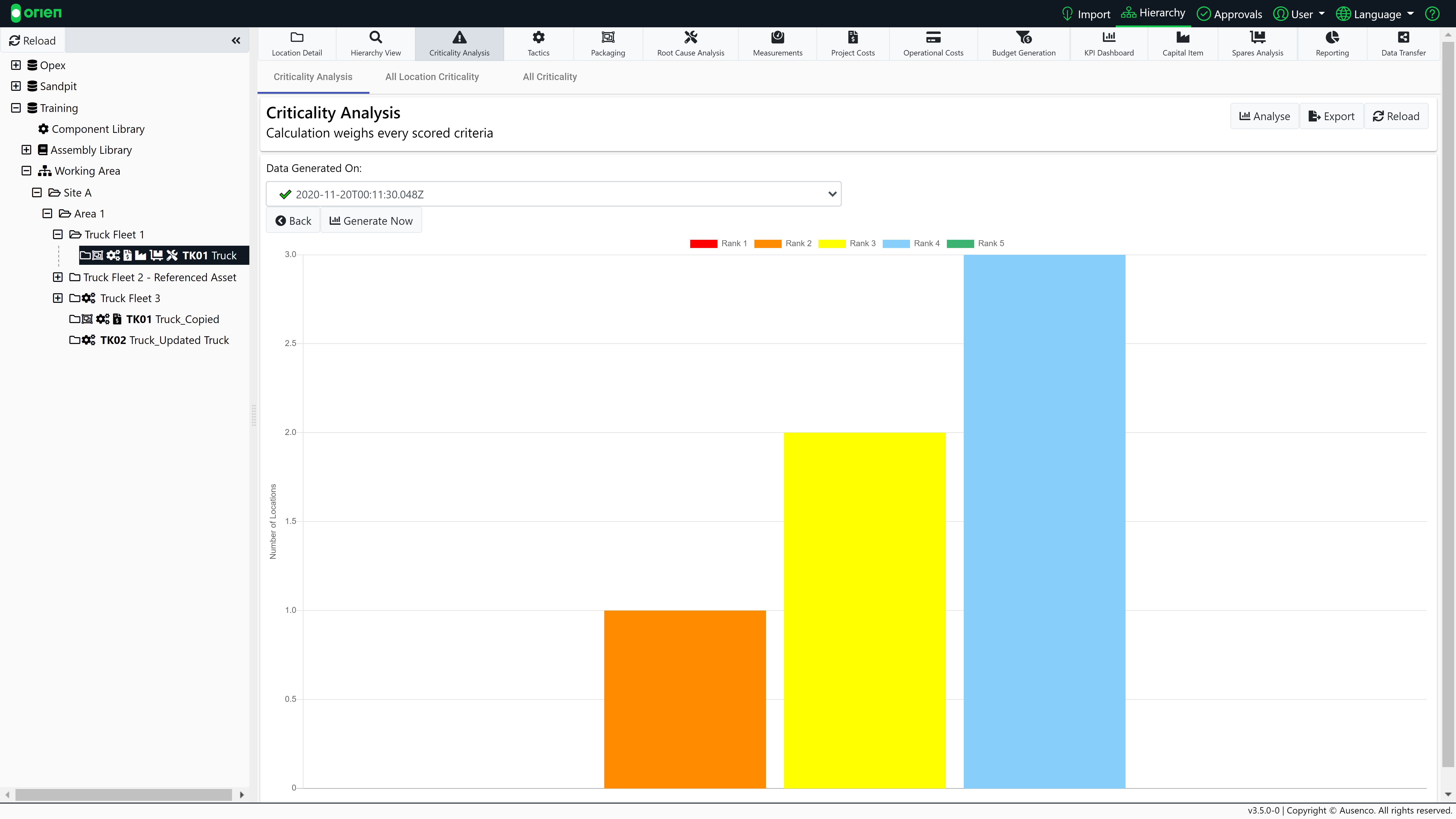
- When you have completed your risk assessment of all the Criteria, select Analyse and then Generate Now. You will see a screen that generates a graph of all assigned risk assessments at this level on the Hierarchy and below.
The process of creating a criticality analysis is also demonstrated in the video tutorial below: