Budget generation allows the user to use the Tactics that have been budgeted and Operations that have a frequency set within a location to produce a budget. The budget can be generated for a pre-defined duration and be deconstructed by years or a customisable budget period. It also allows you to create ‘tags’ to record historic data. Running validations ensures data integrity and successful budget generation.
There are three prerequisites to be able to successfully generate a budget:
- Tactics and failure modes;
- Packaging’s maintenance strategies setup and assigned; and
- Production allocated to the asset.
Note
Refer to the article on Production for more information allocating a Production and Forecast Dates.
Generating a Budget
To generate a budget:
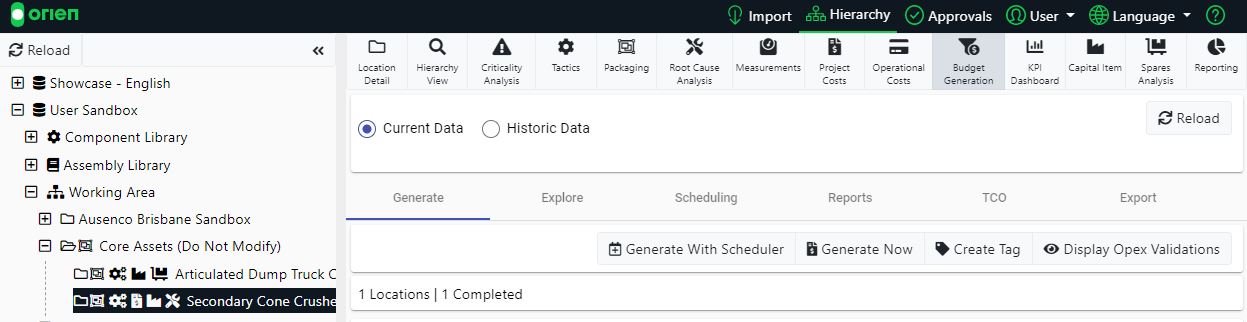
- Choose an item from the Hierarchy, select the Budget Generation module and then the Generate Now button.
- Enter the appropriate parameters for the budget you want to generate, and then select Queue Generation. Ancillary Materials (%) is an additional flat percentage cost applied to all materials in this budget generation. Data State refers to if you want to generate working state Tactics and Packaging (Active) or only Finalised. Generate For enables users to generate all locations or only Stale (ungenerated, stale, or locations with errors).
This loads all the data for the location you are working and will start processing your budgeting configuration onto the data.
Note
Please remember to select Reload to get an update on the progress of the Budget Generation.
- When you have reloaded the section, you will be presented a generation bar and message to indicate if the budget was successful.
-
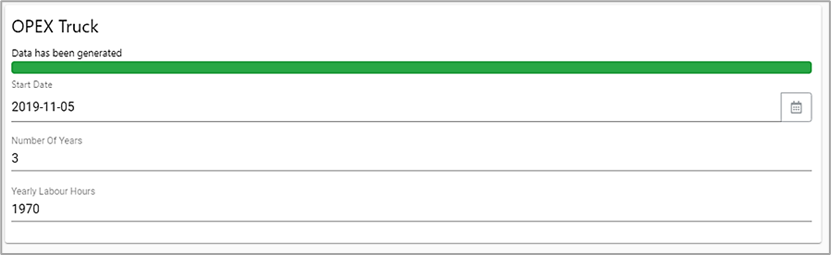
Green: Indicates the generation at this location has been successful.
-
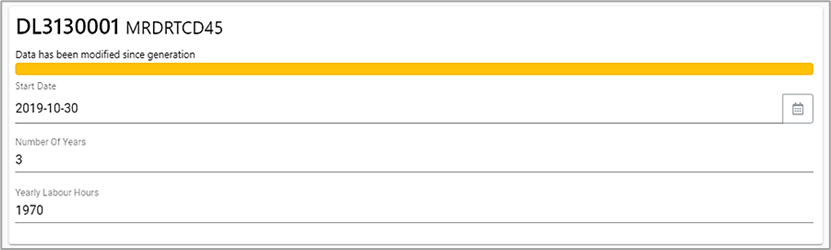
Yellow: Indicates that the data has gone ‘stale’. This infers that the data for this Location has been changed or updated, and the currently generated data does not reflect the most recent values.
-
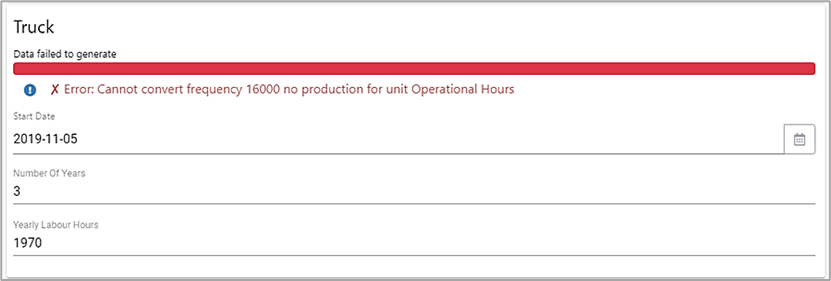
Red: Indicates that there has been an issue with the generation. This can indicate that one of the Opex Validations has failed or that there was an error during generation. Refer to the article on Running Budget Validations for more information.
-
Green: Indicates the generation at this location has been successful.
You can filter to show each type of generation (Completed, Stale, Error) by selecting the wanted value at the top of the screen. The Selected filter value will be Bold.
The process of generating a budget is also demonstrated in the video tutorial below:

Creating a Tag
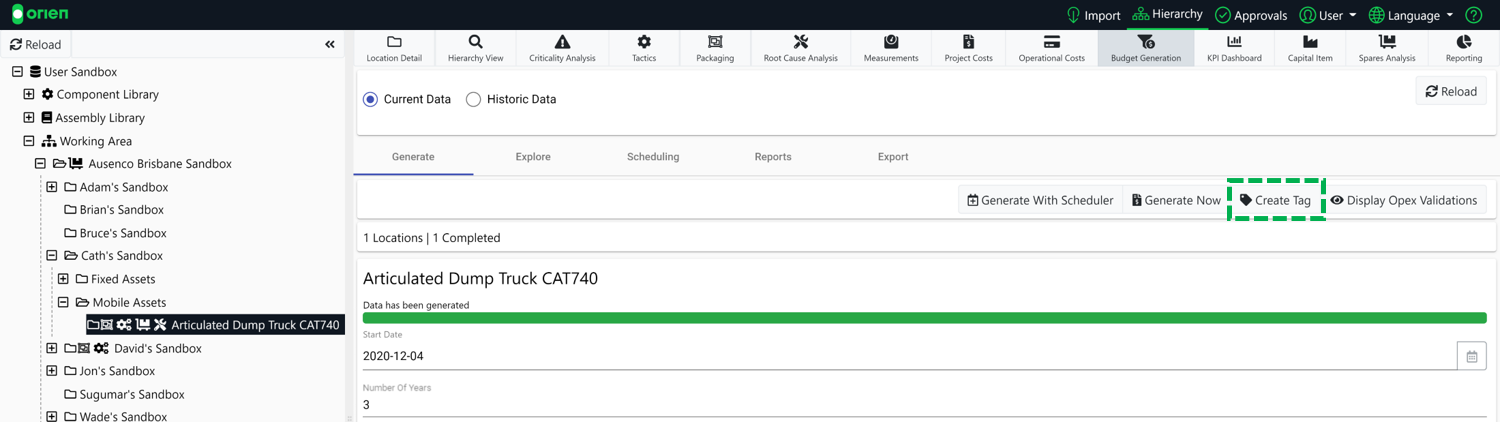
Creating a Tag allows you to store the data for the currently generated budget. This will allow you to store it as Historic Data and compare it with future results. To create a tag, ensure your Budget has been generated for this functional location, and select the Create Tag button. Insert a name for your generated budget and then select Save.
Note
If a tag is created at a high level, all the children of the asset will also get tagged with the same name and the same data. You currently cannot view the specific data of a child from the parent’s tag.
Viewing Historic Data
Once you have started creating Tags for your generated budgets, you can start selecting your tagged budgets to view the different budgets. To view historic data, select the drop-down and then select your Tagged Budget.
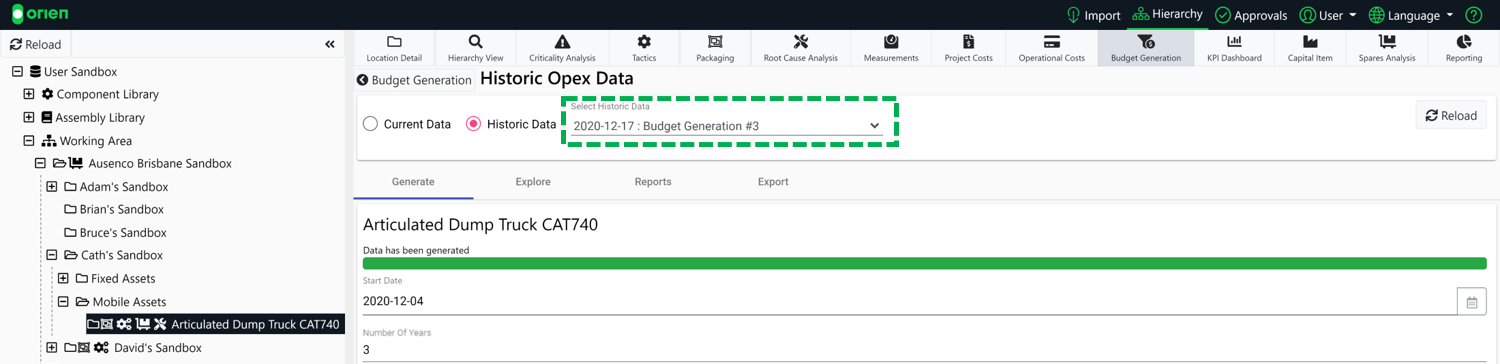
Once you have selected your new budget. The screen will reload and show your new data values. You can now explore the budget, view your reports or your Total Cost of Ownership and export using this selected data set.
Budget Generation fields
There are various fields that are used for Budget Generation across multiple modules. Below are the key ones for understanding budget generation dates and measurements.
| Opex Fields | Description |
|---|---|
| Start Date | The date where the generation of budgets will start from. |
| Number of Years | The number of years that the budget will be generated from the Start Date provided. |
| Yearly Labour Hours | The number of labour hours per year is used for FTE calculations. It's the number of hours that a full time employee will have in a year. This is for all labours. |
| Ancilliary Materials (%) | A flat percentage that is applied to Material Costs that increases their cost by this value. |
Location fields for Budget Generation
There are fields on the asset's location itself that can be used for budgets.
| Location Fields | Description |
|---|---|
| In-Service Date | The date where the asset is in-service and in production. If a generated budget has dates before this asset was In-Service, it won't appear. |
| Decommission Date | The date where the asset isn't in production. If a generated budget has dates after the Decommission Date, the asset won't appear. |
| Meter Reading | The amount of production (Time Based or Operational) that the asset has currently done based on the Meter Reading Date. |
| Hourly Downtime Cost | The cost associated to an hour of downtime of the asset. This is used for TCO and Spares Analysis calculations. |
| Meter Reading Date | The date when the Meter Reading Value was taken. |
| Meter Reading Unit | The unit of the Meter Reading. The units are defined in the Tactics Config. |
Measurement fields for Budget Generation
There are fields for Components and Operations for Assets that are currently in production and can be updated to more accurately reflect their current state and future actions.
| Measurement Type | Measurement Fields | Description |
|---|---|---|
| Component Meter Readings | Meter Reading | The reading of the component since it's last replacement or when it was installed. |
| Component Meter Readings | Meter Reading Date | The date when the Meter Reading value was taken. |
| Component Meter Readings | Last Replace Date | The Date when the Component was last replaced. |
| Component Meter Readings | Unit | The unit of the Meter Reading. The units are defined in the Tactics Config. |
| Operation Last Performed Dates | Last Performed Date | The date when the Operation was Last Performed. If no date is provided, it will use the In-Service Date. |